If you have ever searched for screen recording software, you already know this pain. Most “free” tools are free until you actually try to export something clean. Then you get a watermark, a five-minute cap, or a paywall you didn’t see coming.
This list skips all of that. Every pick below is a screen recorder that genuinely does not stamp your video with a logo. We looked at free tools, paid tools, and the built-in options already sitting on your computer, and picked the six that actually deliver on the “no watermark” promise. No guesswork, no vague claims just real screen recording software you can start using today.
How We Picked These Screen Recording Programs?
Not every app that calls itself a “free screen recorder” actually is one, some of the most popular screen recording programs quietly cap your export at 720p, lock editing behind a subscription, or slap a logo on anything you record without paying first.
To make this list, a tool had to pass three simple tests:
- No visible watermark on the exported video, whether the plan is free or paid
- No forced time limit that makes the tool useless for real work (a few platform-specific caps are noted where they exist)
- Real, verifiable features not marketing claims we couldn’t confirm
That’s the bar every screen recorder on this list had to clear.
The 6 Best Screen Recording Software Without Watermark
We reviewed hundreds of options to bring you the best Screen Recording Software available today. Here is the list:
1. OBS Studio: Best Free, Unlimited Screen Recording Software
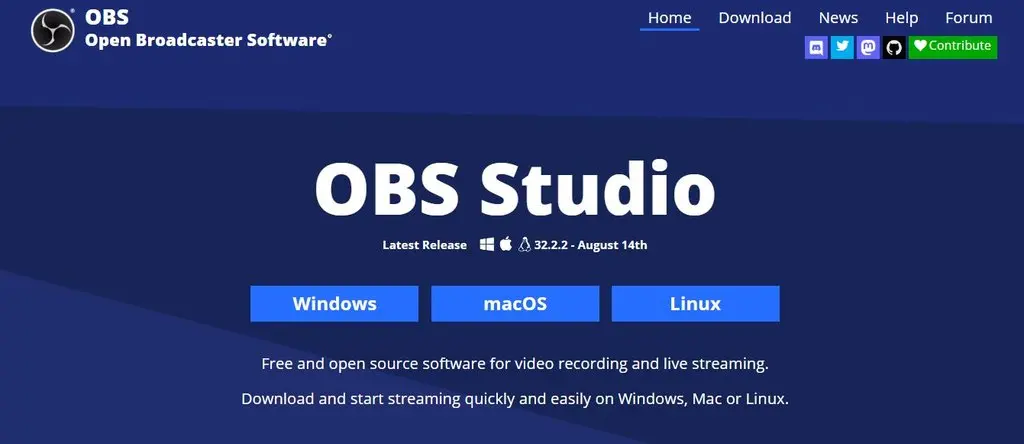
If you only remember one name from this list, make it OBS Screen Recorder, ask any community of streamers, tutors or YouTubers what they use and OBS Studio comes up almost every time because It is completely free, open source, and available on Windows, Mac, and Linux.
The OBS screen recorder works through “scenes” and “sources.” A source is anything you want to capture: your display, a specific window, your webcam, or your game. A scene is a saved layout of those sources, so you can build one scene that’s just your screen, another with your webcam in the corner, and switch between them instantly while recording. This alone makes it more flexible than most screen recording software in this price range.
What makes it stand out:
- Zero watermark, zero time limit, on every platform
- Full control over resolution, frame rate, and output format
- Plugin support for things like NDI and VDO.Ninja for remote setups
- Can also live stream to YouTube, Twitch, and dozens of other platforms
- Runs on Windows, Mac, and Linux a rare trait among free screen recording software
Where it falls short:
- The interface can be overwhelming for a first-time user
- Features like cursor highlighting or automatic zoom need plugins, not built in by default
- OBS is resource-intensive. It runs best with at least 8GB of RAM, and can lag on older machines with less
Best for: Advanced recording and custom workflows
Watermark: OBS Studio does not add an OBS watermark to recordings
Platforms: Windows, macOS, Linux
Price: Free and open source
2. ScreenRec: Best for Instant Sharing Without a Watermark
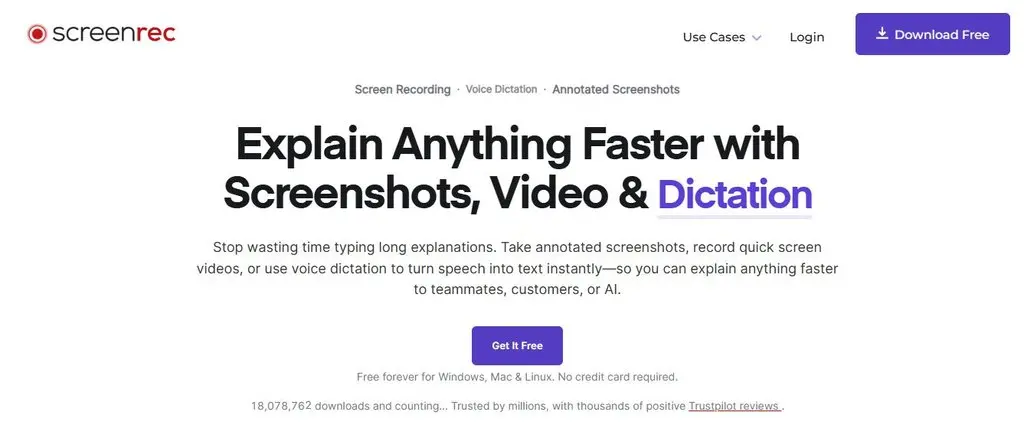
ScreenRec takes a different approach. Instead of just saving a file to your desktop, it uploads your recording to the cloud as you record, then copies a shareable link straight to your clipboard. It’s built specifically to be a private, business-friendly screen recorder that doesn’t nickel-and-dime you with a watermark.
Create a free account and you get unlimited recording time, 2GB of free cloud storage, and recordings that are encrypted with 128-bit AES so only people with the link can view them. If you skip the account, you’re capped at five minutes per recording, but the video itself still has no watermark either way.
What makes it stand out:
- No watermark on any recording, free account or not
- Lightweight app that doesn’t slow down your computer while recording
- Records your webcam, system audio, and microphone at once
- Local copies are also saved to your hard drive alongside the cloud upload
Where it falls short:
- Currently built for Windows and Linux, with Mac support still catching up
- No built-in video editor; this is a recorder first, not an editing suite
- Non-logged-in recordings are capped at five minutes
Best for: Quick recording and sharing
Watermark: No watermark on the current Free Forever plan
Free-plan recording quality: Up to 720p
Important limit: Personal use only on the current Free Forever plan
3. ShareX: Best Lightweight, Open-Source Screen Recorder
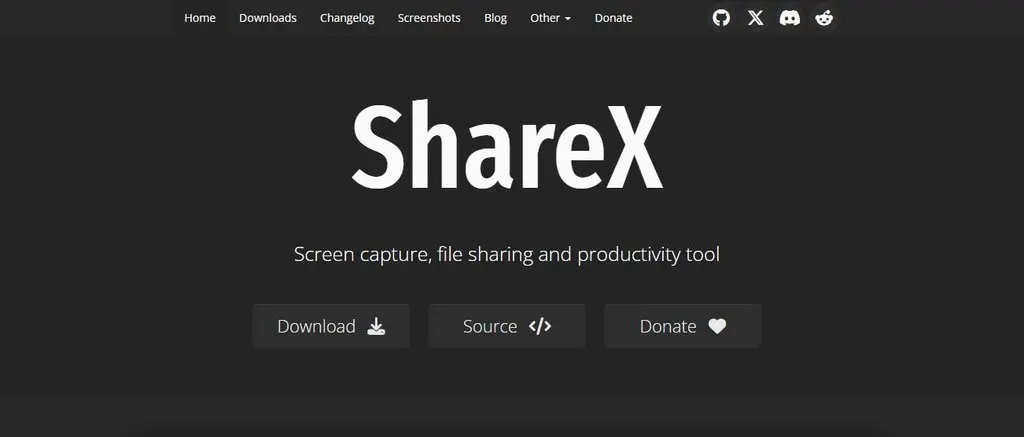
ShareX is the tool most Windows power users already have installed, even if they only think of it as a screenshot app. It’s completely free, open source, and doubles as a full-featured screen recording software with no watermark and no time cap.
Unlike most screen recording software, ShareX doesn’t have a traditional record and stop button sitting in a window. You start and stop recordings with a keyboard shortcut or from its capture menu, which makes it feel more like a background utility than a standalone app. Once you’re done, ShareX can automatically upload your recording to services like YouTube, Google Drive, or FTP, or just save it locally.
What makes it stand out:
- 100% free with no watermark, ever
- Extremely light on system resources, great for older or lower-spec PCs
- Doubles as a screenshot tool, color picker, and video converter
- Fully customizable video codecs for advanced users
Where it falls short:
- Windows only, no Mac or Linux version
- Not built for full-screen game capture
- The interface is dense and takes a bit of exploring to learn
Best for: Flexible screen capture and recording on Windows
Watermark: No built-in ShareX watermark
Platform: Windows
Price: Free and open source
4. Windows Game Bar & Snipping Tool: Best Built-In Screen Recording Tool
Sometimes you don’t want to install anything at all. If you’re on Windows, you already have a capable Windows screen recording tool sitting on your machine.
Press Shift + Windows + R, and the Snipping Tool’s recording option opens, letting you select an area of your screen and record it directly no download needed. For more control, press Windows + G to open the Xbox Game Bar. This captures the specific window you last had open, and lets you record your microphone and system audio at the same time. Windows also includes Clipchamp, a free built-in editor that can record your screen and immediately drop the clip into a timeline for trimming, captions, and basic effects, though the free version caps recordings at 30 minutes and 1080p export.
What makes it stand out:
- Already installed, no download or sign-up required
- Genuinely no watermark on any exported clip
- Game Bar supports simultaneous mic and system audio capture
Where it falls short:
- Game Bar only records the active window, not a true full-screen capture
- Very few customization options compared to dedicated screen recording programs
- Clipchamp’s free tier limits recordings to 30 minutes per session
Best for: Basic and Quick recording on Windows
Watermark: No watermark
Platform: Windows 10/11
5. Loom: Best for Business and Team Screen Recording Software
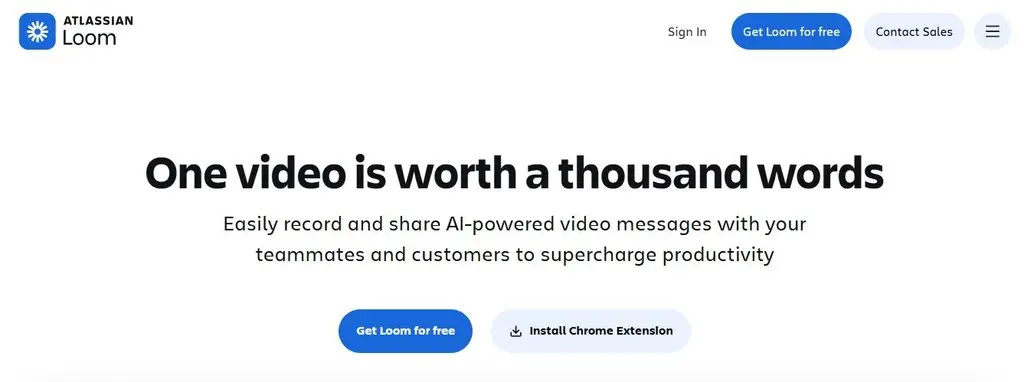
Loom built its entire reputation on being the fastest way to record your screen and send someone a link. It’s used across sales teams, support teams, and remote companies specifically because it removes the friction of “record, export, upload, share” and turns it into “record, done.”
The free plan doesn’t add a watermark, but it does cap you at 25 videos, five minutes long each, at 720p. That’s enough to test it properly, but teams that record often will outgrow it quickly. Loom also tells you when someone actually watches your video, which is genuinely useful for sales and client communication you know your message landed instead of guessing. For businesses that need to find and reach the right people, JarvisReach offers verified contact data, email verification, and outreach tools in one platform. You can also learn more about how to find a phone number for free when building your contact list.
What makes it stand out:
- No watermark on free or paid recordings
- Instant shareable link the moment you stop recording
- View tracking shows exactly when someone watches your video
- AI features can auto-generate titles, summaries, and transcripts
Where it falls short:
- Free plan is capped at 25 videos of five minutes each
- Not built for long-form content like full tutorials or YouTube videos
- Limited editing compared to a dedicated screen recorder built for post-production
Best for: Work communication and quick video sharing
Platform: Desktop and browser-based workflows
Ideal use: Tutorials, explanations, feedback, and team updates
6. Screen Studio: Best for Polished, Cinematic Screen Recordings
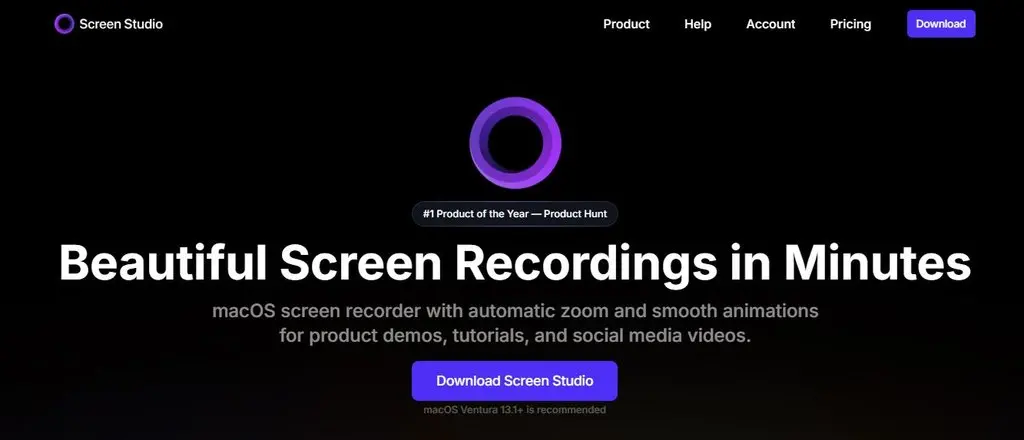
Screen Studio is built for a different job entirely, making your screen recording software output look genuinely professional. It’s Mac-only, and it has no free plan, but it more than earns its place here because the finished video simply looks better than anything else on this list, and it never adds a watermark.
The core feature is automatic zoom. As you move your cursor and click around your screen, Screen Studio smoothly zooms and pans to follow the action, the way a professional editor would manually keyframe a demo video. You can add backgrounds, shadows, and device frames, record your webcam and hide it mid-recording when you need the screen space back, and export up to 4K at 60fps.
One thing worth knowing before you buy: some long-time users have reported an occasional audio clipping issue during longer recordings, where a word or phrase gets cut mid-sentence with no way to recover it. It’s worth testing on a short recording first if you plan to record anything over ten minutes.
What makes it stand out:
- Automatic cursor zoom and smooth pans, no manual editing needed
- Custom backgrounds, shadows, and device frames for a polished look
- Exports up to 4K at 60fps
- Reusable presets so every video matches your brand
Where it falls short:
- Mac only, no Windows version
- No free plan, only a free trial before you need to pay to export
- Files save locally by default rather than to the cloud
- Some users report occasional audio clipping on longer recordings
Best for: Basic recording on Windows
Watermark: No Xbox Game Bar watermark added to standard recordings
Platform: Windows
Price: Included with supported Windows systems
Quick Comparison: Best Screen Recording Software Without Watermark
Here is a quick side-by-side comparison to help you choose the screen recorder that best fits your needs.
| Tool | Best For | Platform | Price | Watermark | Time Limit |
| OBS Studio | Overall best free option | Windows, Mac, Linux | Free | None | None |
| ScreenRec | Instant cloud sharing | Windows, Linux (Mac limited) | Free | None | None (with free account) |
| ShareX | Lightweight, all-in-one workflow | Windows | Free | None | None |
| Windows Game Bar / Snipping Tool | Zero-install, built-in recording | Windows | Free | None | Varies by tool |
| Loom | Business and team communication | Windows, Mac, iOS, Android, Chrome | Free plan, paid from ~$18/month | None | 25 videos, 5 min each (free plan) |
| Screen Studio | Polished, cinematic recordings | Mac only | Paid, from ~$9/month (yearly) | None | None |
How to Choose the Right Screen Recorder For You
With six solid options, the right pick really comes down to what you’re recording and who’s watching it.
- Recording tutorials or long-form YouTube content? OBS Studio gives you unlimited length and full control for free.
- Sending a quick update to a client or coworker? Loom gets a link into their inbox in seconds.
- Need to record right now with zero setup? The built-in Windows screen recording tool (Game Bar or Snipping Tool) is already on your PC.
- Want the video to look genuinely cinematic? Screen Studio’s automatic zoom does the heavy lifting for you.
- On an older PC or just want something light? ShareX and ScreenRec both run smoothly without draining your system.
- Recording for a business and need private sharing? ScreenRec’s encrypted cloud links keep things secure without a subscription.
There isn’t a single “best” screen recorder for everyone. There’s a best screen recorder for your specific situation, and now you know which one that is.
Which Screen Recording Software Is Best for Your Needs?
Here is a simple way to choose.
Choose OBS Studio if you need advanced control
OBS Studio is the strongest choice in this list for users who need multiple sources, scenes, detailed audio controls, and configurable recording settings.
Choose ScreenRec if you want quick recording without a complex setup
It is better suited to users who want a simpler workflow. Check the current plan limits to make sure the recording quality and usage terms work for you.
Choose ShareX if you need flexible screen capture for Windows
It is a strong free choice for users who regularly capture screenshots and screen recordings on Windows.
Choose Screen Studio if video presentation is your priority
Its focus is on creating polished-looking screen videos for demos and tutorials on macOS.
Choose Loom if sharing is your main goal
It is designed around quickly recording and communicating through video.
Choose Xbox Game Bar for basic supported Windows recordings
It can be useful when you want a simple built-in windows screen recording tool and do not need advanced controls.
A Quick Note on Mobile Screen Recording Software
If you’re looking to record your phone screen instead of your computer, both iPhone and Android already have this built in. On iPhone, add Screen Recording to your Control Center and tap it to start. On Android, swipe down twice from the top of your screen and tap Screen Record. Neither adds a watermark, and neither requires installing a separate app.
The Bottom Line
A good screen recorder should never punish you for using the free version. Every tool on this list proves that a clean, watermark-free recording doesn’t have to mean paying upfront or hunting through settings for a hidden toggle.
If you want the most powerful free option, go with OBS Studio. If you want something light and instantly shareable, ScreenRec or Loom will get the job done in seconds. And if the finished video needs to look like it came out of a design studio, Screen Studio is worth the price tag.
Screen recording is useful for more than tutorials and work presentations. Many people also use recorded walkthroughs to explain AI tools and online platforms. If you are exploring AI-based platforms, you may also want to read our guide on What Is Janitor AI?
Screen Recording Software FAQs
What is the best software for screen video recording without a watermark?
The best Screen Recording Software depends on your needs. OBS Studio is a strong choice for advanced control. ScreenRec is useful for simple recording and sharing and ShareX is a good option for flexible screen capture on Windows, the best choice depends on the features, platform, and workflow you need.
What is the best software for screen video recording?
For advanced screen video recording, OBS Studio offers extensive controls over sources, audio, scenes and also recording settings. For simpler recordings you can use tools such as ScreenRec or Loom hence its important to first understand whether you are looking for basic recordings or advanced controls.
How do I screen record on my PC?
On Windows, press Windows + G to open the Game Bar or Shift + Windows + R to open the Snipping Tool’s recorder, Both are built in and require no download.
What is the best free screen recorder program?
OBS Studio is one of the strongest free screen recording programs for advanced users. It is free and open source and supports Windows, macOS and Linux whereas ScreenRec and ShareX are close runners-up especially if you want something lighter or built for instant sharing.
Are there any screen recorders that don’t add a watermark?
Yes. OBS Studio, ShareX, ScreenRec, Loom, Screen Studio and the screen recording tools built into Windows all export videos with no watermark. Many other “free” tools only remove the watermark after you pay, so it’s worth checking before you commit to one.
Do free screen recorders have time limits?
Some do. Loom’s free plan caps you at 25 videos of five minutes each. Windows’ built-in Clipchamp caps free recordings at 30 minutes OBS Studio, ShareX and ScreenRec (with a free account) have no time limit at all.
Does OBS Studio add a watermark?
No. OBS Studio does not add an OBS watermark to recordings.
Is OBS Studio really free with no hidden catch?
Yes. OBS Studio is open source and completely free, with no premium tier, no watermark and no locked features. The only real cost is that it needs a reasonably capable computer, ideally with at least 8GB of RAM, to run without lag.
Can I record my screen without downloading any software?
Yes, if you’re on Windows. The Snipping Tool, Windows + G and Game Bar are already installed and let you record without downloading anything; Mac users can do the same with the built-in QuickTime Player.
Does Loom have a watermark on the free plan?
No. Loom’s free plan does not add a watermark to your videos. It does limit you to 25 videos of up to five minutes each at 720p resolution.
What’s the difference between a screen recorder and screen capture and recording software with editing built in?
A basic screen recorder simply captures your screen and saves the file. Screen capture and recording software like Screen Studio or Loom goes a step further, adding editing tools, zoom effects, or sharing features directly inside the same app, so you don’t need to move your file to a separate editor afterward.
Can I record my screen and audio at the same time?
Yes, several tools can record screen and audio. The exact audio options vary. Check whether the tool supports system audio, microphone audio, or both before recording.
Which screen recorder is best for gaming?
OBS Studio is the standard choice for game recording and live streaming, thanks to its game capture source and streaming integrations. Windows’ Game Bar also works well for quick gameplay clips without installing anything extra.
What should I look for besides a watermark-free recording?
Look at:
- Recording length
- Video quality
- System audio support
- Microphone support
- Webcam recording
- Export options
- Storage limits
- Commercial-use terms
- Platform compatibility
- Ease of use
A screen recorder without a watermark is useful, but these factors determine whether the software actually works for your needs.